Working with vendor-submitted supporting documents
After a vendor submits a document, it shows in your Supporting documents tab. A red badge indicating the number of supporting documents that need attention shows in the Supporting documents tab heading.
You can also view the status of a vendor document in the Vendor document status column. New vendor-submitted documents show the status of Pending, Received, Declined, or Recalled.
A new vendor-submitted document has a status of Pending. You can open the document to view it. You can then receive the document or decline it to send it back to the vendor for revision.
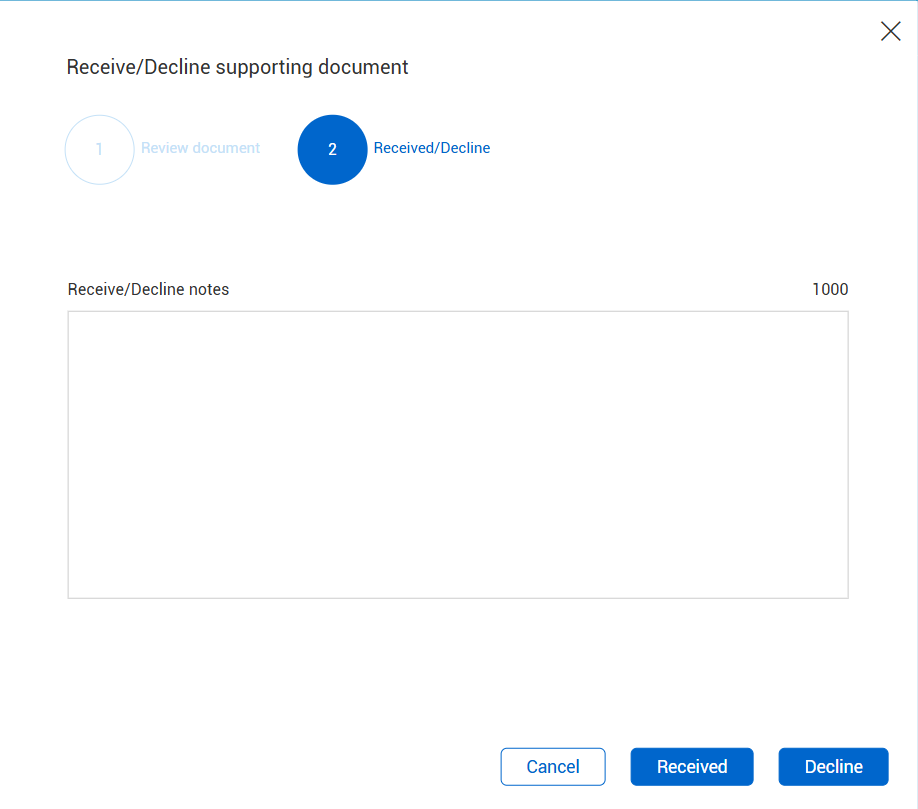
To receive or decline a pending document, select it, and then click the Received/Decline button in the Supporting documents page.
The Receive/Decline supporting document wizard opens. Review the details on the first page and then click Next. The Received/Decline page opens. Click Received to accept the document or Decline to decline it.